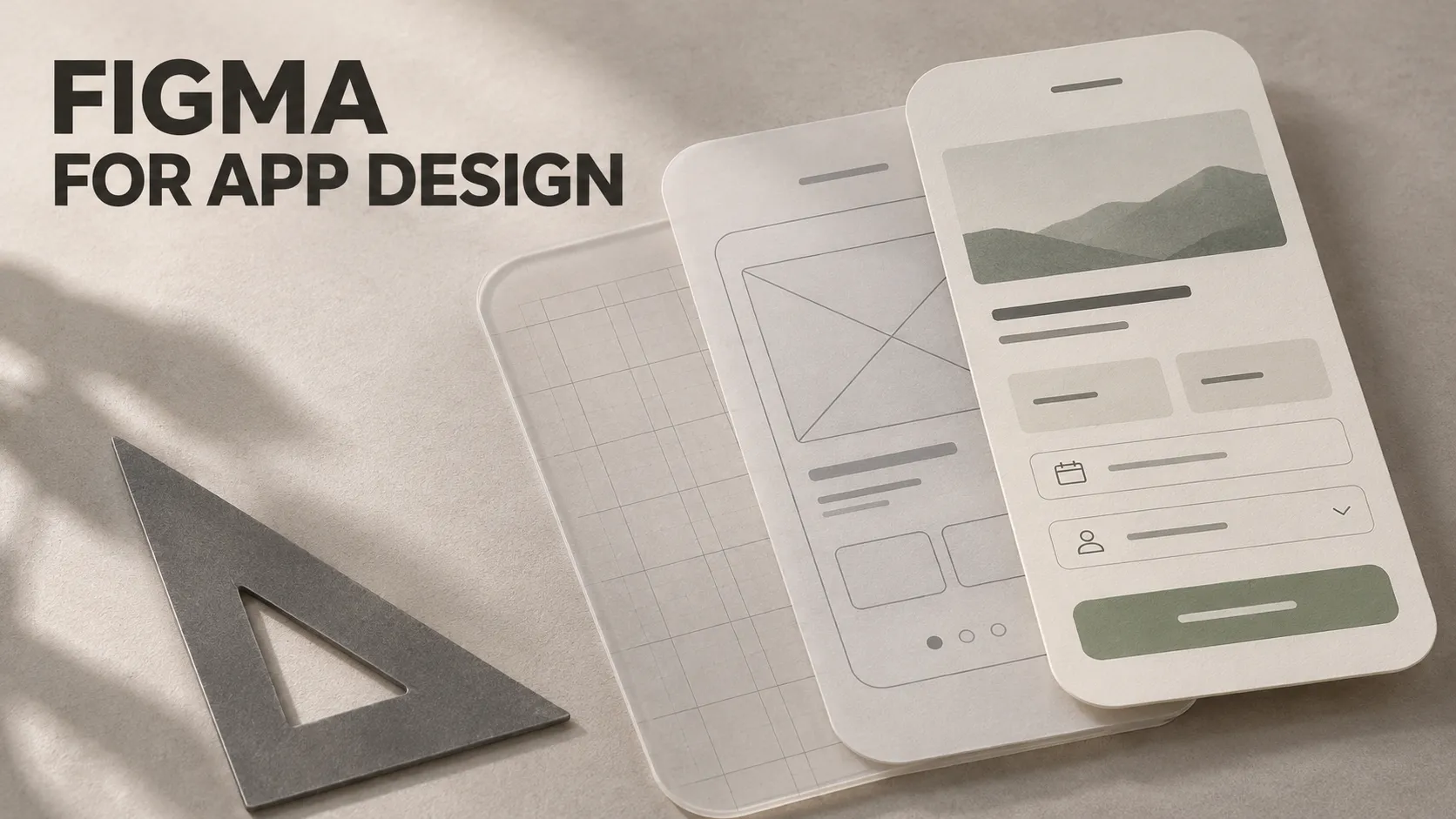
Before an app can help someone book an appointment, solve a puzzle or review a sports movement, the team needs to decide how people will use it. Which screen appears first? Where should the main control sit? What happens after someone taps it?
Figma helps teams make those decisions visible.
Figma Design is used to plan interfaces, create screen designs, build interactive prototypes and communicate implementation details. Designers, developers and product owners can work from shared files rather than explaining every decision through separate screenshots.
In app development, its value comes from helping people understand and evaluate the proposed experience. The design then needs to connect with the engineering work required to make the product operate.
Think of a Plan and a Walkthrough Before Construction
Imagine planning a small shop. A floor plan helps you decide where the entrance, shelves and checkout should go. A walkthrough can reveal whether customers understand where to move next.
Neither document proves that the electrical system works or that the building can support its intended load. Those questions require different kinds of work.
Figma plays a similar role in app development. It can help people explore the arrangement of screens and interactions before committing to a particular implementation.
The team can then test technical questions in code while continuing to refine the design. Design and development can inform each other throughout the project.
What Is Figma Used for at Each Design Stage?
Mapping the user journey
A user journey describes how someone moves towards a goal. For a sports replay app, that goal might be watching a movement shortly after performing it.
The team needs to understand what happens before, during and after that moment. Does the person adjust a delay? How do they know the system is ready? How do they keep a useful clip?
FigJam, Figma's collaborative whiteboard, can help organise these questions into flows, diagrams and notes.
Creating wireframes
A wireframe is a simplified layout showing the structure of an interface. It focuses on what belongs on the screen and how important elements relate to one another.
For a replay screen, a wireframe might show a large video area, a delay control and one clear action for saving a clip.
Detailed colours and decorative effects can wait while the team checks whether the essential controls make sense.
Designing the visual interface
A more detailed mockup defines the appearance: typography, colours, spacing, icons and the visual treatment of controls.
This helps the team evaluate questions such as whether the primary action stands out, whether labels are readable and whether related screens feel consistent.
Building an interactive prototype
A prototype connects screens or states so someone can try a proposed interaction.
For example, tapping a settings control could open a panel, and choosing an option could lead to another prepared state.
This makes the experience easier to discuss than a collection of disconnected images. It can also reveal whether a person understands the intended navigation.
UI and UX Describe Different Questions
User interface, or UI, concerns the controls and information people interact with: buttons, forms, menus, text and screen layouts.
User experience, or UX, concerns the wider experience of completing a task, including the sequence, clarity and feedback involved.
A replay button can look attractive but remain difficult to find from several metres away. A settings panel can be visually tidy while requiring too many steps during a training session.
Figma helps a team represent and investigate these decisions. Using the tool does not automatically make the resulting experience effective.
The Basic Figma Terms Explained
Frame
A frame is a container for design elements. A top-level frame often represents an app screen, while smaller frames can organise parts of that screen.
Layer
A layer is an element in the design, such as text, an image, an icon or another container. Organised layers make the file easier to understand and maintain.
Component
A component is a reusable design element. The team might create one shared button component and use instances of it across several screens.
Those instances remain connected to the main component and can inherit its changes. Specific instance properties can also be overridden.
Variant
Variants describe related forms of a component. A button might have default, pressed and disabled variants, each representing a different intended state.
Defining these states helps the developer understand more than the control's appearance in one screenshot.
Auto layout
Auto layout arranges elements according to properties such as direction, spacing, padding and resizing behaviour.
For example, a button can grow when its label becomes longer, or a list can rearrange as items are added.
This helps explore content changes and screen sizes. The application still needs its own corresponding layout implementation.
Where Does Figma Fit in Damien Musy's Work?
Damien's MVP development service explicitly lists Figma within its product and technical design offering.
The service describes planning user flows, architecture and the data model, followed by mobile development, backend work, integrations and publishing.
This establishes Figma's place in the published service: it supports design work within a broader process of delivering an application.
It does not establish which Figma features were used on every individual project. The published case studies for Binero, Queens Master and Instant Replay do not identify their design tool.
A Real Project Context: Instant Replay
Damien's Instant Replay case study describes an Android app for athletes and coaches. It keeps the camera running while displaying footage from a short time earlier, with an adjustable delay and a way to export a recent clip.
The project also documents a specific interface constraint: a phone on a tripod may be controlled from several metres away, sometimes while the person wears gloves. Controls therefore need to be large and obvious.
The case study does not say Figma was used. The following is an illustrative design exercise based on that documented problem, rather than a report of the project's Figma files.
How Figma could support a similar interface
A team could create and compare layouts addressing three questions:
- What must remain visible? Give the video area enough prominence while keeping essential controls identifiable.
- What should be easy to change? Explore a delay control that can be understood without navigating through several screens.
- What feedback is needed? Define how the interface communicates readiness, processing and the outcome of saving a clip.
A prototype could then help investigate whether target users recognise those controls and understand the proposed sequence.
What requires a technical proof of concept
The published project explains that Damien first checked technical feasibility on a real phone because continuous video capture can affect heat, battery use and storage.
A design prototype would not answer those hardware questions. A proof of concept using the relevant device capabilities is needed to investigate them.
The project illustrates why interface exploration and technical validation should address different uncertainties, with the order determined by the product's needs.
What Can You Learn From a Figma Prototype?
Give a participant a task rather than explaining every control. For a replay concept, you might ask them to find the delay setting or show how they would save a useful moment.
Observe where they hesitate, what they expect to happen and whether the interface communicates the next step.
Useful questions include:
- Can the person identify the main action?
- Do the labels describe the outcome they expect?
- Can they find their way back after opening a secondary screen?
- Do loading, unavailable and error states make sense?
- Is important information missing from the flow?
These observations can guide revisions. A small prototype session does not prove future retention, commercial demand or production performance.
Testing the implemented app remains necessary, including device behaviour and accessibility features that a visual prototype does not fully represent.
How Developers Use Figma
Developers use design files to understand the intended interface and discuss decisions that affect implementation.
They may inspect dimensions, typography, colours, spacing, component states and interaction details. They can also retrieve suitable visual assets.
Dev Mode provides an inspection-focused environment with design information, assets and code-related resources. Available capabilities depend on the relevant access and product configuration.
Developers should participate before handoff
A developer can identify questions while the design is still flexible: does this interaction need a platform permission, can the backend supply the information, and what happens when the connection is unavailable?
For a camera-based app, early technical work may reveal device constraints that should change the proposed interface.
A shared file supports those conversations. It should not become a reason to postpone engineering input until every screen is polished.
How Does Figma Connect With Flutter?
Figma describes the intended design. Flutter provides the tools for implementing an application interface in code.
A developer can translate layout intentions into widgets such as rows, columns, padding and text, while implementing interaction state and application behaviour separately.
For example, an auto-layout group in Figma may communicate how controls should be spaced. The developer still needs to choose an implementation that responds correctly to the app's available space and content.
A Figma component and a reusable Flutter widget can represent related concepts, but creating the design component does not automatically create and connect the corresponding application code.
Match behaviour as well as appearance
The implementation needs to handle conditions that one static mockup cannot demonstrate:
- Long labels and translated text.
- Different screen sizes and orientations.
- Larger system text settings.
- Loading, empty and failure states.
- Keyboard, navigation and platform behaviour where relevant.
Compare the running app with the agreed design and task requirements. A screen that resembles the mockup can still behave incorrectly.
Can Figma Generate Code or Build an App?
The answer depends on which Figma product or integration you mean.
- Figma Design: supports interface design and prototyping.
- Dev Mode: provides implementation information, assets and code-related inspection features.
- Figma Make: uses AI-assisted workflows to create interactive applications and web-based prototypes.
- Figma Sites: supports designing and publishing websites.
Figma's MCP integration can also provide design context to compatible AI development tools.
These capabilities make blanket claims such as “Figma only produces pictures” misleading. However, a generated interface does not by itself establish that a native mobile application meets its architecture, backend, performance or release requirements.
Evaluate the output against the product you need. A web demo, an interactive design and a store-distributed Flutter application are different deliverables.
What Should a Design Handoff Include?
A useful handoff gives the developer enough information to implement and discuss the intended experience:
- The relevant editable design file and appropriate access.
- Clearly identified screens and user flows.
- Reusable components and their important states.
- Layout behaviour for changing content and screen sizes.
- Text, typography and visual assets needed for implementation.
- Notes explaining interactions and unresolved decisions.
- An identifiable version or set of designs agreed for development.
A PDF or screenshot can communicate appearance, but an editable design file can preserve structure and reusable elements that are harder to infer from an image.
Keep the design and implementation discussions connected as the product changes. Otherwise, the team may be reviewing one version while developing another.
Does Every MVP Need a Complete Figma Design?
The amount of design work should follow the uncertainty in the project.
If the main question is whether people understand a new flow, a focused wireframe or prototype may be useful. If the main question concerns continuous camera capture or another device capability, a technical proof of concept may need to come first.
A mature application with established components may also need less visual exploration for a small change than a new product does.
Define the decision the design work should support. Then create enough detail to investigate it and communicate the result.
Frequently Asked Questions
Is Figma a programming language?
No. Figma is a product platform with design and development-related tools. Languages such as Dart, Kotlin and Java are used to express application behaviour in code.
Is a Figma prototype the same as an MVP?
A prototype explores aspects of a proposed experience. An MVP delivers a limited but useful product journey. A clickable design can support MVP planning without providing the complete working service.
Do I need to code to review a Figma design?
No. Founders and other reviewers can discuss screens, wording and flows without writing code. Technical implementation questions still require the relevant development input.
Does Figma prove that the app will work offline?
No. A prototype can show an intended offline screen, but storage, synchronisation and recovery behaviour must be implemented and tested in the application.
Can I use Figma for both Android and iOS design?
Yes. Teams can prepare interfaces for both platforms. They still need to consider platform conventions and validate the implemented experience on supported devices.
Which Damien project is confirmed to have used Figma?
The published MVP service explicitly lists Figma. The public case studies examined for Binero, Queens Master and Instant Replay do not identify their design tool, so they cannot be presented as confirmed Figma implementation case studies.
Use Design Work to Resolve Product Questions
Figma is most useful when the file helps a team answer concrete questions about the product: what users should do, what feedback they need and how the interface should adapt.
Connect those design decisions with technical validation and the running application. That gives the team a clearer path from a proposed experience to a product people can use.
If you are shaping an MVP or improving an existing mobile experience, explore Damien Musy's expertise for support connecting user flows, interface decisions and mobile development with the technical requirements of your product.