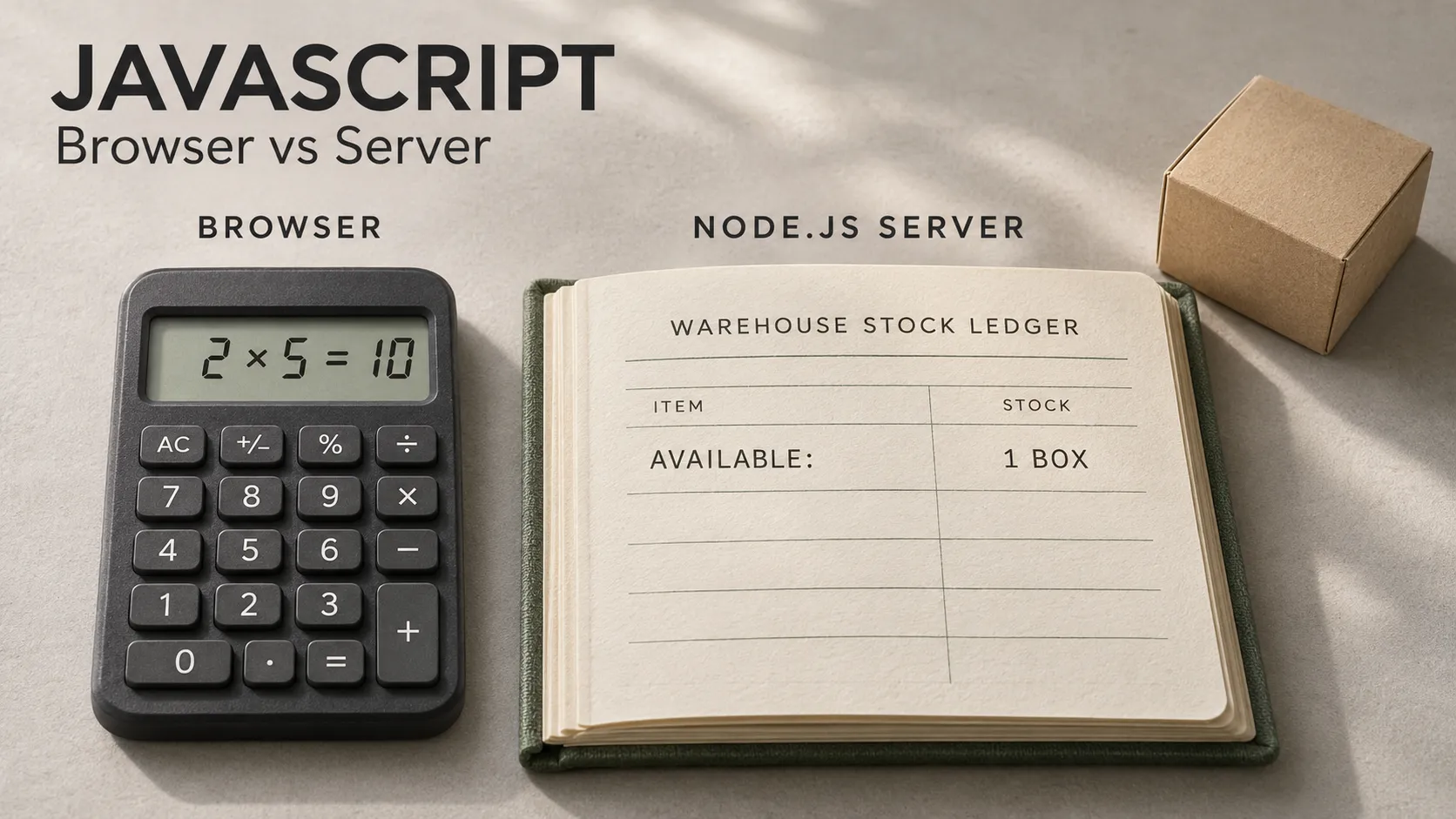
You need 10 kg of carrots for a restaurant. On your supplier’s website, you enter 2 beside “5 kg boxes”. The page immediately shows 10 kg. Then you press “Check availability”. A moment later, the page says the supplier has only one box left.
Both answers appeared on the same screen, but they came from different places. Your browser already had enough information to multiply two by five. To find out what the supplier could deliver, it had to ask a system that keeps track of stock.
JavaScript is the programming language that can handle both jobs. In the browser, it can respond to what you type and update the page in front of you. On a server, software called Node.js can run JavaScript that receives your request, looks up a stock record and sends back an answer. The distinction is where the instructions run and what information is available there.
What is JavaScript, and what is Node.js?
A programming language gives people a way to write instructions a computer can follow. In JavaScript, the instruction 2 * 5 means “multiply two by five”. Something still has to read that instruction and carry it out. The software environment that runs the code and gives it tools to work with is called a runtime.
When you open a website in Chrome, Safari or Firefox, the browser can run JavaScript on your device. A developer can also install Node.js to run JavaScript outside a browser. One common use is to run a server, a program that listens for requests and sends back responses. Node.js can also run a script on a developer’s laptop, such as a tool that prepares product images before publication.
Think of the restaurant’s order clerk and the warehouse clerk. Both understand the instruction “multiply the number of boxes by five”. The order clerk can do that calculation at the counter. The warehouse clerk also has access to the stock register. What each person can answer depends on the records and tools at their desk. The same principle applies to JavaScript.
What does JavaScript do in the browser?
In the supplier’s catalogue, HTML provides the quantity field and its label. CSS keeps the label close enough to the field that you can see what “2” means, even on a phone. JavaScript adds the behaviour: when you change the quantity, the page can recalculate the weight immediately. The catalogue from the CSS layout article is a useful starting point for this interaction.
To make a change on screen, browser JavaScript uses the Document Object Model, usually shortened to DOM. Think of it as the browser’s working copy of the page. A script can find the quantity field in that copy, read its value and update the text showing the total.
This small example lets a buyer change the number of boxes. It starts with two boxes weighing 10 kg in total.
<label for="boxes">Number of boxes (5 kg each)</label>
<input id="boxes" type="number" min="1" step="1" value="2" required>
<output id="weight" for="boxes">10 kg</output>
<script>
const boxes = document.querySelector("#boxes");
const weight = document.querySelector("#weight");
boxes.addEventListener("input", () => {
if (boxes.validity.valid) {
weight.value = ${boxes.valueAsNumber * 5} kg;
} else {
weight.value = "Enter a whole number of boxes, at least 1.";
}
});
</script>
Read the example as three instructions. Find the field and its output. Listen for the buyer to edit the field. Whenever the value is valid, multiply it by five and display the result. Change 2 to 3 and the page shows 15 kg. Clear the field and it asks for a quantity, so the old total does not linger beside an empty box.
Once this page has loaded, that calculation can still work if the kitchen Wi-Fi drops. It uses numbers the browser already has. Knowing whether the warehouse has three boxes left is a different question.
What does Node.js do on the server?
Suppose two restaurants have the same catalogue open. One places an order for the last available box while the other is still deciding. The second buyer’s open page has no way to know about that sale on its own. The supplier needs a shared stock record that both customers’ orders are checked against.
A Node.js server can receive a product identifier and a requested quantity, confirm that the request is valid, and ask the supplier’s inventory system how many boxes are available. The inventory might live in a database or in an existing warehouse system. Node.js runs the code that communicates with it.
This also explains why the server checks a quantity that the browser has already checked. The browser check helps the person filling in this particular form. The supplier may also receive requests from a mobile app or a different version of the website. Checking the rule on the server gives all of those customers the same ordering rules.
What happens when you press “Check availability”?
Imagine the buyer requests two boxes and the supplier can currently fulfil one. Here is how the answer travels from the warehouse record back to the screen.
- The browser identifies the request. It reads the selected product and the number 2. It knows the buyer means two boxes because the product identifier refers specifically to the 5 kg pack.
- The browser sends a message to the supplier. JavaScript can use a function called
fetch()to send an HTTP request. HTTP is the set of rules browsers and servers use to exchange messages on the web. - The server checks the facts. The Node.js code validates the product and quantity, then reads the stock record. In this example, that record shows one box available.
- The server replies with data. It sends a small structured message that the browser can read.
- The browser explains the result. The buyer sees “You requested 2 boxes. Only 1 box (5 kg) is currently available.” They can now decide whether 5 kg is useful or whether to choose another pack.
The address the browser calls and the agreed format of the reply are part of an API, short for application programming interface. In plain English, the two programs agree on how to ask a question and what an answer will look like. Here is one possible reply in JSON, a common format for exchanging data.
{
  "product": "carrots-box-5kg",
  "requestedBoxes": 2,
  "availableBoxes": 1
}
The server can report one box even if the buyer asked for two. That is a successful availability check with a disappointing answer. If the kitchen loses its connection before the reply arrives, the result is unknown. Showing “Out of stock” in that situation could make the buyer abandon an order the supplier could actually fulfil. A more accurate message is “Couldn’t check availability. Try again.”
Can the same JavaScript run in both places?
Yes, when the code only needs tools that both environments provide. This function takes two numbers and returns their product. It can calculate a preview in the browser or a weight on the server.
function weightInKg(boxes, kgPerBox) {
  return boxes * kgPerBox;
}
weightInKg(2, 5); // 10
The earlier line document.querySelector("#boxes") is different. It asks for a field in an open web page. A standard Node.js process has no such page or document object. Conversely, Node.js provides tools such as node:fs for working with files the process has permission to read. That can be useful when a supplier sends a stock file for the server to import overnight.
Some tools exist in both environments. Modern browsers and Node.js both support fetch(). The browser might use it to ask the supplier’s server for availability. The server might use it to ask a warehouse service for the latest count. The function name is the same. The caller, destination and permissions are what change. The official Node.js comparison with the browser explains the environments in more detail.
How does a JavaScript file know where to run?
The file name alone does not choose. When a web page includes <script src="catalogue.js" defer></script>, the browser downloads that file and runs it after it has parsed the page. When a developer starts a program with node server.js, Node.js runs that file on the machine where the command was issued.
This answers a practical question for a founder: customers do not need to install Node.js to use a website whose backend runs on Node.js. They open the site in their browser. The supplier runs and maintains the backend. A mobile app written in Dart with Flutter can also call that backend, provided it follows the same API agreement.
Which decisions belong on each side of an ordering app?
Start with what the message on screen promises. “Two boxes weigh 10 kg” is a calculation from a known pack size. “One box is available” depends on a stock record that can change. “Your order is confirmed” makes a further promise: the supplier has accepted the order. Those three sentences appear close together on a screen, yet each requires different evidence.
In an ordering MVP, I would let the browser calculate the weight as the buyer types, ask the backend for availability when the buyer needs it, and show an order confirmation only after the ordering system accepts the order. If another customer takes the last box between the check and checkout, the buyer needs the updated quantity while they can still change their decision.
In my role as Technical Lead at Apps Panel / Nomeo, I worked on a food wholesaler’s application that connected its catalogue, customer accounts and order tracking with the company’s existing information system. The stock check above is an illustrative browser and Node.js design. The connection to that project is the product question behind it: what can the customer’s device work out immediately, and what must the supplier’s system confirm?
If you are scoping a mobile app or web portal, bring one action your customers need to complete and the message they should see when it succeeds. I can help map what happens on the device, what the backend needs to verify, and how the customer can continue if the answer changes. Explore my mobile and backend expertise.