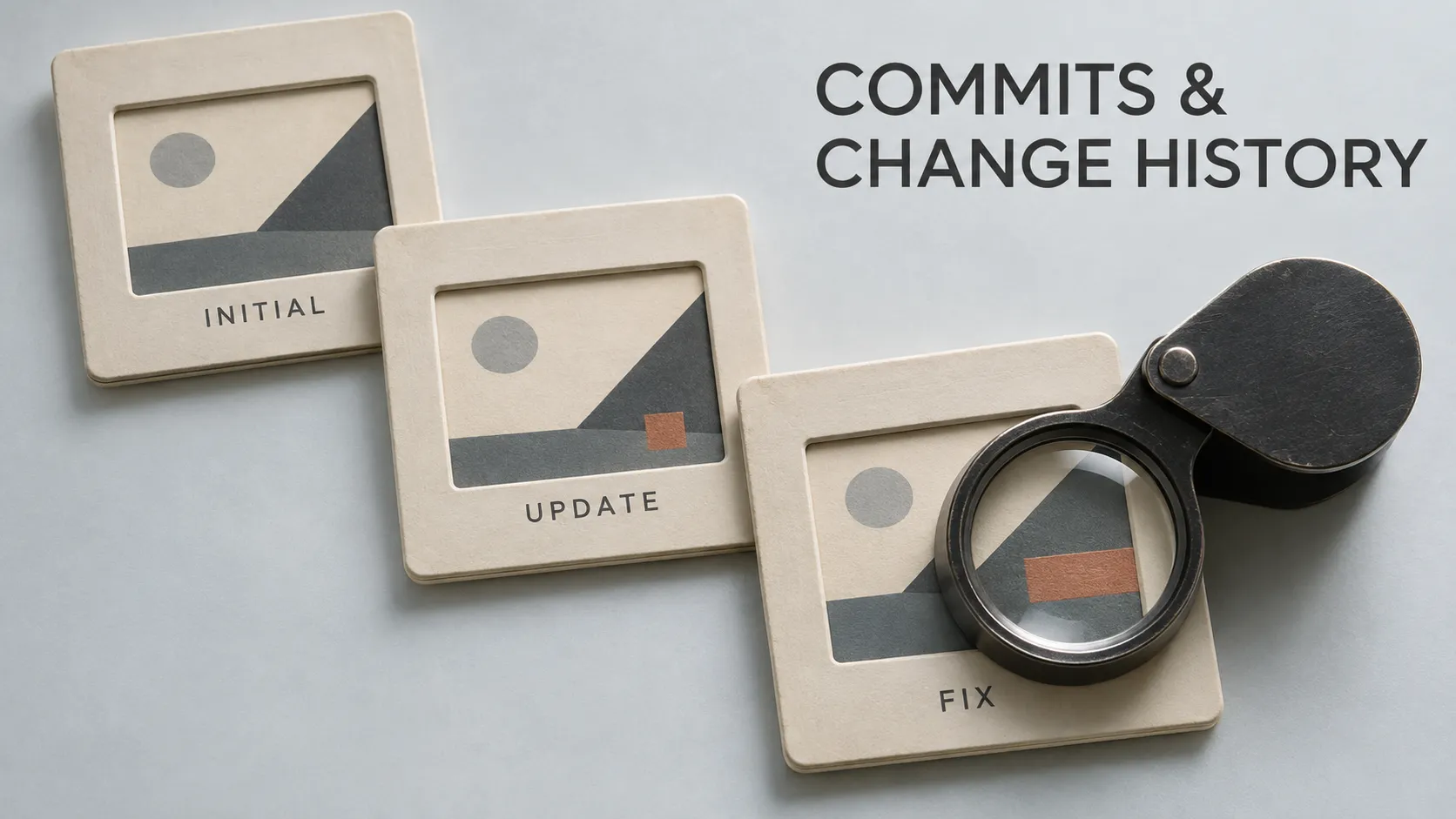
A booking app now allows five seats per request. Previously, it allowed two. Another update prevents customers from submitting a request for zero seats. Months later, a developer needs to understand when those rules changed and why.
The current files show how the app works today. Git commits and change history help explain how the project reached that point.
A commit records a snapshot of the project's tracked content, together with information such as an identifier, a message and author details. Commit history connects those recorded versions so developers can inspect changes over time.
To understand that history, you need to read more than the message. The recorded code, its relationship to earlier versions and the surrounding project context all matter.
Think of Commits as Recorded Revisions of a Shared Document
Imagine a team preparing workshop instructions. One revision changes the maximum group size. Another clarifies who can attend. A third corrects an error in the booking process.
A useful revision record would preserve each version and explain the purpose of the change. Someone joining later could compare the versions instead of asking everyone to remember what happened.
A Git commit provides a similar checkpoint for project files.
The comparison has a limit: Git does not automatically record every edit or every time you save. Developers select content and create commits deliberately.
What Does a Git Commit Contain?
A commit brings together several pieces of information:
- A project snapshot: the tracked content recorded for that version.
- A commit identifier: a hash identifying the commit object.
- A message: a developer-written explanation of the change.
- Author and committer details: identities and timestamps recorded with the commit.
- Parent references: links connecting the commit to earlier history.
A typical commit has one parent. An initial commit has none, while a merge commit can have multiple parents.
These relationships matter because Git history can contain parallel lines of development. It is not always one straight sequence of events.
A snapshot and a diff are different
The snapshot describes recorded project content at a particular commit. A diff compares versions and shows their differences.
When a Git interface says a commit changed two files, it is presenting a comparison with earlier content. That comparison is a convenient way to inspect the change.
The message explains intent
A message such as “Reject zero and negative booking quantities” explains the intended behaviour. The diff lets a reviewer inspect how the developer attempted to implement it.
A convincing message does not prove that the implementation is correct. Review and testing still need to examine the actual change.
One App Example With Three Commits
Consider a fictional booking project containing a file called booking_rules.dart. Its history records three changes:
- Add a rule limiting each booking to two seats.
- Increase the maximum to five seats.
- Reject requests for zero or negative seats.
A compact history for this practice example looks like this:
277ea0c Reject zero and negative booking quantities
7a8437e Allow up to five seats per booking
206ea69 Add booking quantity rule
The latest commit appears first in this simple history. Each line starts with an abbreviated commit identifier followed by the message's first line.
These identifiers belong to the example. Your repository will have its own identifiers and messages.
The three summaries already communicate a useful sequence: a feature was introduced, its limit changed, and an input-validation problem was corrected.
How to Read Git Commit History
Run the following commands from inside an existing local Git repository. File-specific examples assume the practice file is named booking_rules.dart.
Start with a short list
git log --oneline -n 5--oneline gives a compact summary. -n 5 limits the output to five commits.
By default, Git follows the history reachable from the current commit. This does not necessarily show work on other branches.
For a more detailed view of recent entries, use:
git log -n 3This normally includes the full identifier, author, author date and commit message.
If Git opens a scrolling viewer in your terminal, pressing q usually returns you to the command prompt.
Understand what HEAD refers to
HEAD identifies your current position in the repository. In ordinary branch-based work, it points through the current branch to its latest commit.
The examples below use HEAD so you can inspect the current commit without copying its identifier.
Inspect What One Commit Actually Changed
Begin with a summary of the files affected:
git show --stat HEADFor our latest example commit, the summary identifies booking_rules.dart and reports a line replacement as one insertion and one deletion.
To inspect the commit message and patch, run:
git show HEADFor this ordinary, single-parent commit, the relevant code difference is:
 bool canRequestSeats(int seats) {
-  return seats <= 5;
+  return seats > 0 && seats <= 5;
 }
The old condition accepted any integer no greater than five, including zero and negative values. The replacement requires a positive number as well.
The minus and plus characters mark the removed and added lines. They are part of the diff display, not the Dart source file.
If the condition is unfamiliar, the explanation of functions, conditions and loops provides the programming background.
Compare two recorded versions directly
git diff HEAD~1 HEAD -- booking_rules.dartHEAD~1 refers to the current commit's first parent. In this linear example, that is the previous checkpoint.
The command compares that version with the current commit for the named file. The double dash separates revision arguments from the file path.
These inspection commands show recorded information without switching your working files to an earlier version.
Find the Changes Relevant to One Question
A long history becomes more useful when you narrow the question. Instead of reading every commit, start with the feature, file or behaviour you are investigating.
Search commit messages
git log --oneline --grep="booking"This searches commit messages for the word “booking.” It does not search the source code changes themselves.
A relevant change can therefore be missed if its message uses different wording.
Inspect the history of a file
git log --oneline -- booking_rules.dartThis limits the history view to changes affecting the specified path, under Git's history-selection rules.
Open a relevant commit with git show to examine its explanation and patch.
For a real bug, also examine related files. A booking problem might involve the screen, a shared validation rule and a backend endpoint.
Why Commit Dates Can Be Confusing
Git records an author identity and date as well as a committer identity and date.
The author identifies the person recorded as originating the work. The committer identifies the person or process that recorded that commit object. These can differ when changes are applied or reorganised.
To display both sets of information for the current commit, use:
git show --no-patch --format=fuller HEAD--no-patch omits the code diff. The fuller format includes AuthorDate and CommitDate.
These timestamps are recorded metadata. They do not establish when someone started work, how many hours the change required or when customers received it.
Also check the timezone used by your Git interface before comparing timestamps from different tools.
What Makes a Useful Commit Message?
A useful message helps the next reader understand the purpose of a change without requiring them to reconstruct every decision from the code.
Compare these summaries:
- “Update files”: gives almost no information about the change.
- “Fix booking”: identifies the area but leaves the behaviour unclear.
- “Reject zero and negative booking quantities”: describes the intended correction.
Add a message body when the reason is not obvious:
Reject zero and negative booking quantities
The previous guard checked only the upper limit.
A request must include at least one seat, so require
a positive quantity as well.
The summary identifies the change. The body explains the previous behaviour and the reason for the new condition.
For more involved work, a message can also reference the relevant issue or explain an important tradeoff. It should describe what the commit actually contains.
Team conventions should support understanding
Some teams use prefixes such as fix: or feat:. Others use plain descriptive sentences.
Choose a convention that supports the team's tools and review process. A prefix alone cannot make a vague explanation useful.
How Much Work Should One Commit Contain?
A useful default is one coherent purpose that can be understood and reviewed as a unit.
A booking-validation fix may reasonably include the rule, a relevant regression test and updated documentation. Those files serve the same change.
Combining that fix with an unrelated advertising integration and a large formatting rewrite makes the explanation harder to follow.
Commit boundaries do not need to match file boundaries. One file can contain several unrelated edits, while one feature can require several related files.
Working checkpoints can be different from integration history
During exploration, a developer may create temporary checkpoints. A team can then organise the proposed work before integrating it into a shared branch.
The appropriate workflow depends on how the team collaborates. The aim is understandable shared history, without demanding that every local experiment already look like a finished feature.
Can You Change an Existing Commit?
Git supports operations such as amend and rebase that can produce replacement commits.
Amending a message does not edit the existing commit object in place. It creates a replacement with a different identifier, even when the recorded project files remain the same.
Reorganising earlier commits can also change the identifiers of the resulting history.
This can be useful while preparing work. Once other people depend on shared commits, agree how history changes will be coordinated.
Reverting a change is a different operation
A revert can record a new commit that reverses an earlier change. The earlier commit remains visible in that history.
For example, a team might introduce a five-seat limit and later record a decision to restore the previous limit. Both decisions can remain understandable.
Reversing source changes still requires appropriate validation and release work before customers receive the resulting behaviour.
A Commit Is Different From an App Release
A commit records source history. A release distributes a particular application build or deploys a backend version.
One mobile release may include many commits. A fix committed today might still be waiting for testing, store submission or staged distribution.
For an app with separate mobile and backend repositories, the operating system may depend on a combination of versions.
Useful release records connect the mobile version and build number, relevant source revisions and the backend deployment. Commit dates alone cannot show which combination a customer used.
How Change History Helps Investigate a Bug
Suppose customers report that a booking behaves incorrectly after an update. A practical investigation can follow this sequence:
- Identify the affected application build and backend environment.
- Reproduce the behaviour with a clear input and expected result.
- Compare the relevant source revisions with the previous known working version.
- Inspect candidate commits, their explanations and related files.
- Check whether the suspected change explains the behaviour.
- Prepare and verify the correction through the normal review and release process.
The most recent commit is a place to investigate, not automatic proof of the cause. Configuration, external services and data can also affect behaviour.
History is most useful when combined with reproducible observations and the records of what was actually released.
Commit Counts Do Not Measure Developer Productivity
A developer can record one feature in several commits or combine prepared work through a squash workflow. A difficult investigation may produce a small code change.
The number of commits therefore depends partly on workflow and does not describe the value, difficulty or completeness of the work.
For a project review, examine delivered behaviour, relevant changes, validation and unresolved issues together.
A long list of messages is less useful than a history that helps the team explain and maintain the application.
Frequently Asked Questions
Is a commit the same as saving a file?
No. Saving updates the file in your working directory. A commit records the content selected for that checkpoint in Git history.
Does committing upload my work?
No. A commit is created locally. Sharing it with a remote repository requires a separate operation, usually a push.
Can one commit change several files?
Yes. Group related changes when they form one understandable purpose. The number of files is not the deciding factor.
Why can I not see a teammate's latest commit?
It may not have been pushed, your local remote information may need updating, or you may be viewing a different branch. A shallow repository can also contain only part of the available history.
Do I need the terminal to inspect history?
No. Git interfaces in editors and graphical applications can display commits, changed files and diffs. The underlying concepts are the same.
Should every commit be a complete feature?
Not necessarily. A feature can be developed through several meaningful commits. Agree what quality and completeness the team expects before changes enter a shared integration branch.
Read the Explanation and the Evidence Together
Begin with the commit summary, inspect the affected files and read the diff. Check how the change relates to its parent and to the version of the application you are investigating.
Clear history gives future developers a better starting point for understanding decisions. Its value comes from helping the team review, diagnose and continue the work.
If you are reviewing an existing app or preparing a technical handover, explore Damien Musy's expertise for support examining the codebase, change history and release workflow behind the product.